Docs
Routines & bot actions
Bots keep working when you're not there. A routine runs a prompt on a schedule, a follow-up checks back once, and bots can set either up for you, with an Undo on every change.
Routines
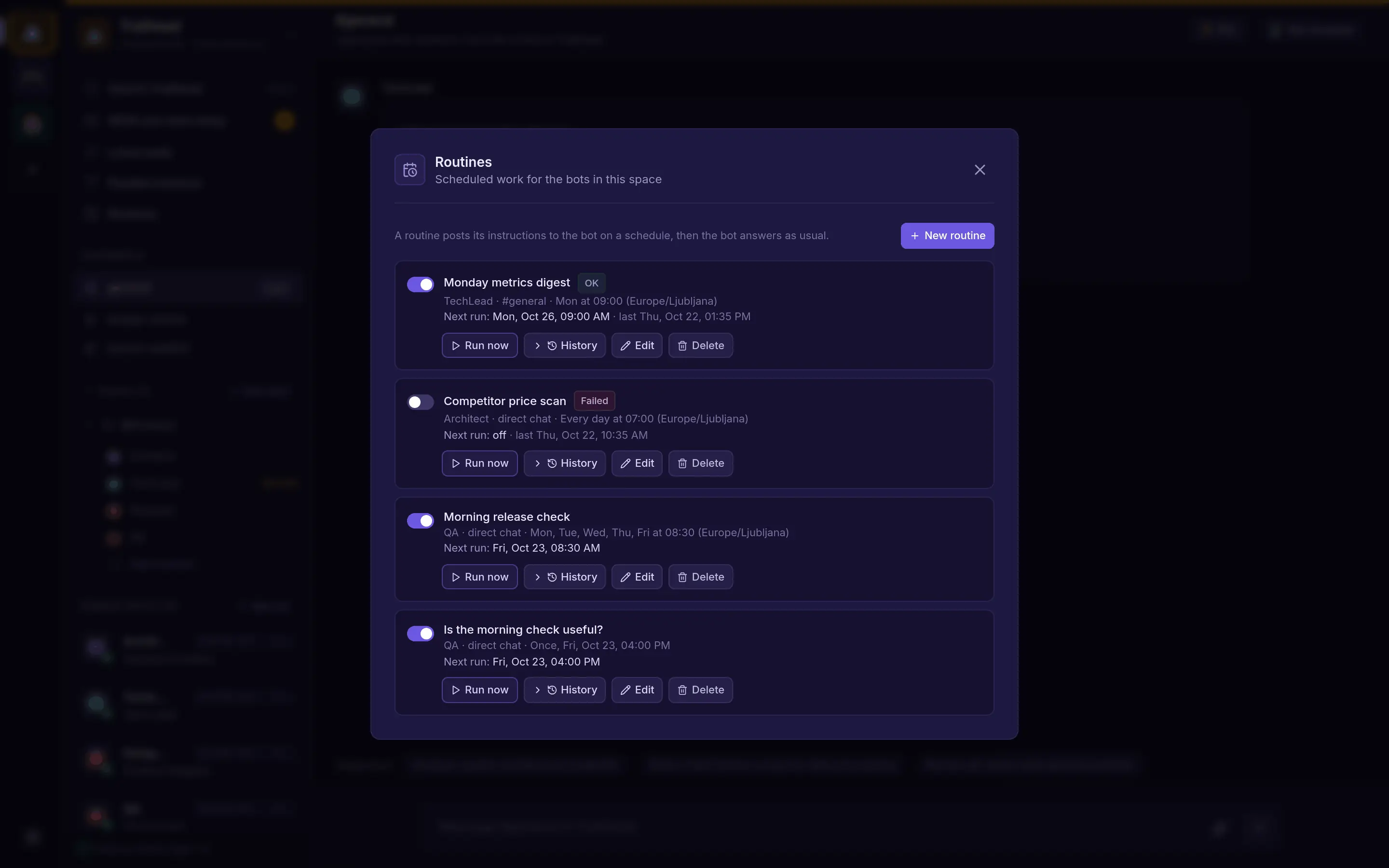
A routine sends a prompt to a bot on a schedule and posts the answer in a channel, the bot's direct chat or a thread. Create one with New routine in a bot's Routines tab or under Space settings → Routines, or ask a bot to do it.
| Schedule | Runs |
|---|---|
| Once | At one date and time |
| Daily | Every day at a time |
| Weekly | On the days you pick |
| Monthly | On a day of the month |
| Every… | Every 5 minutes up to every week |
| Custom | A cron rule |
Each routine has Run now, a history of its last 200 runs, edit, delete and an on/off switch. Archiving a space pauses its routines.
Follow-ups
A bot can set itself a one-off follow-up, for example to check a deploy in an hour. Only bots create follow-ups.
Bots that set things up
Ask a bot for a routine, a channel or a new bot and it makes the change itself. Each change shows a card with what was done and an Undo button.
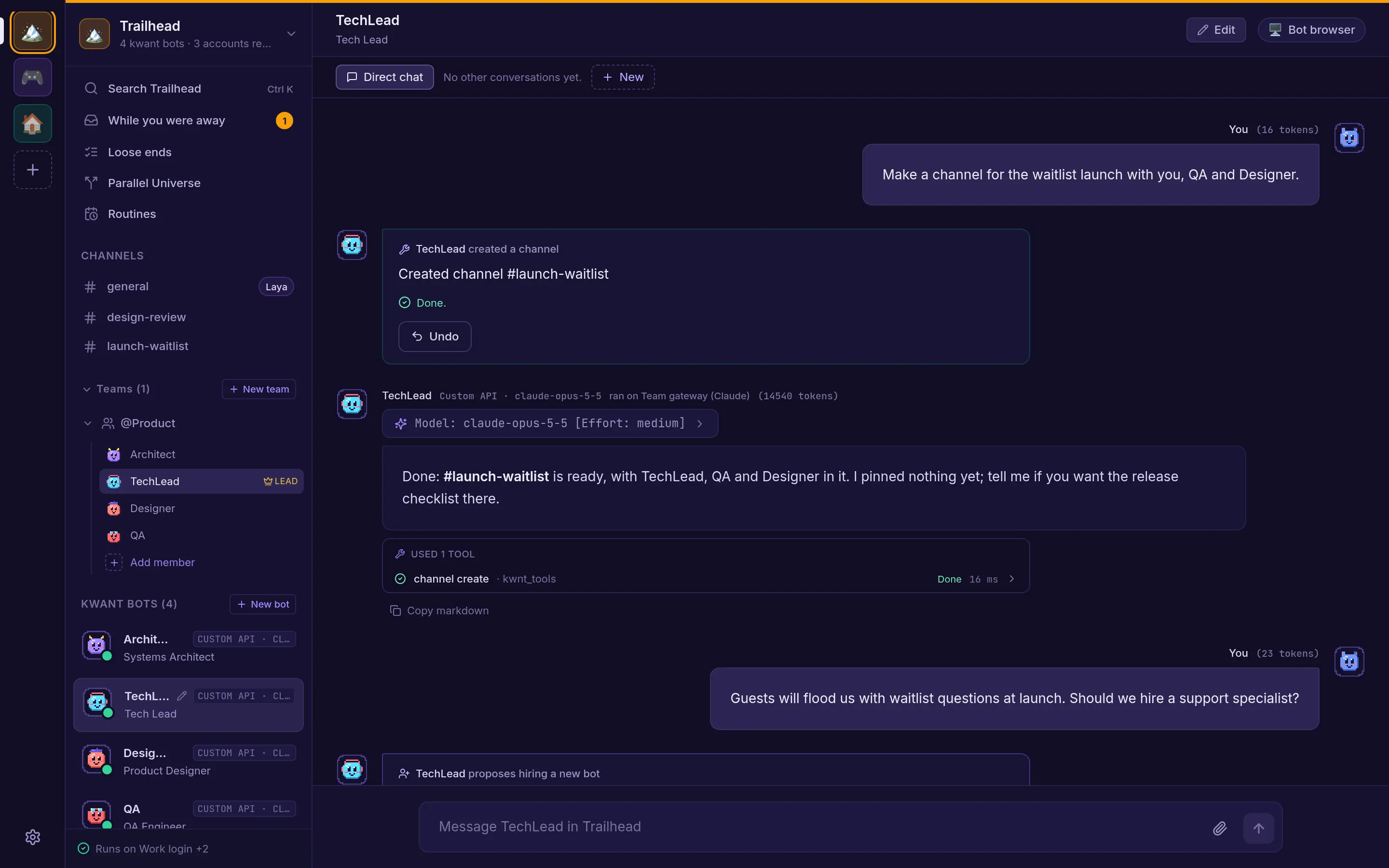
- Bots can create bots, spaces and channels, change settings, and create, update, pause, resume, run or delete routines.
- At most 10 changes per turn, and only in the bot's own space.
- Deleting a bot, deleting an account and archiving a space wait until you confirm.
- Bots can't touch keys or secrets, engines or sign-ins, approval rules, computer mode, or install MCP servers.
Hiring
When a specialist would do a job better, a bot can propose hiring one. The card shows why, what the proposal is based on, and the new bot's model and tools.
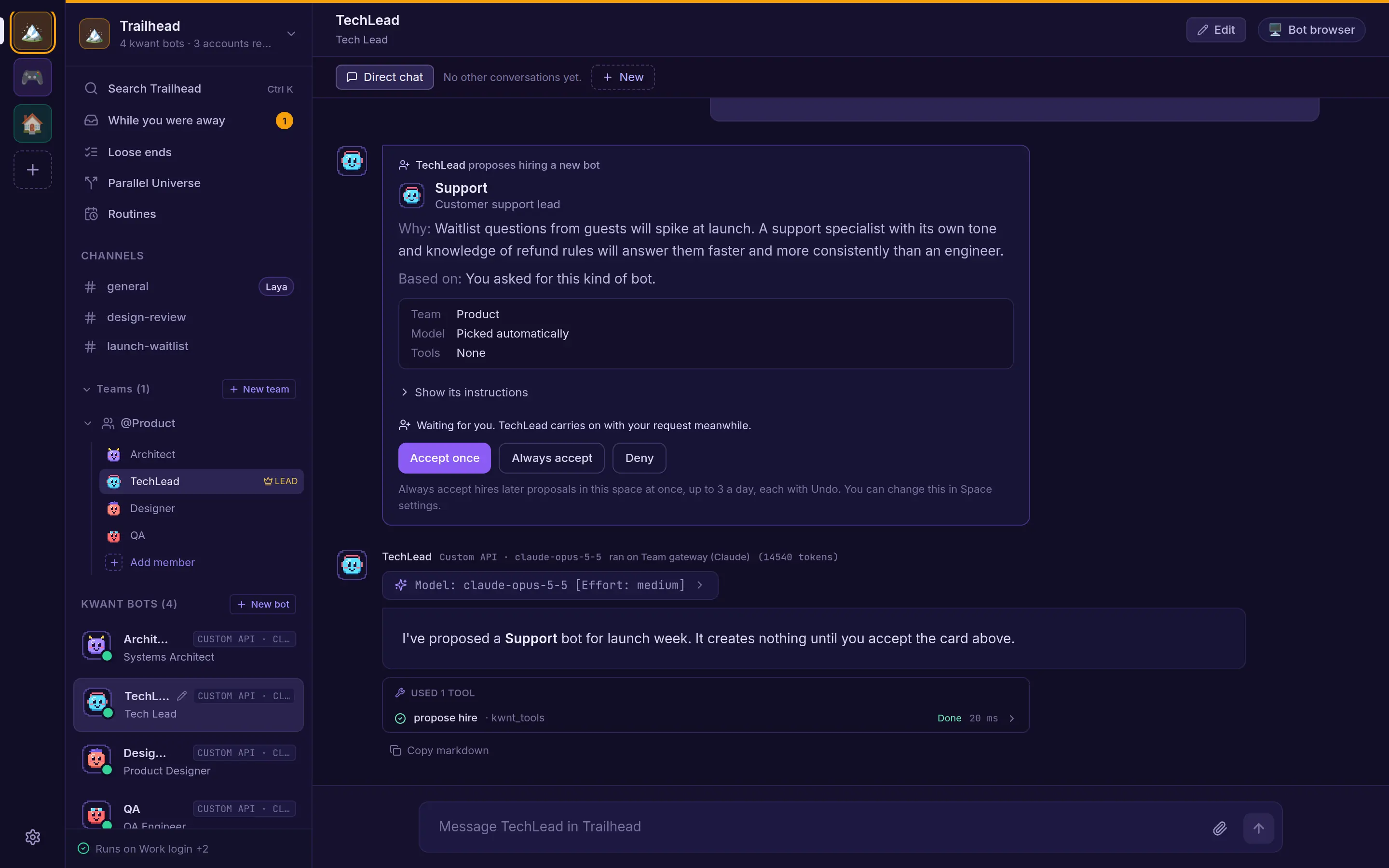
- Deny, Accept once or Always accept. You can undo a hire afterwards.
- A proposal for a whole team has Approve all.
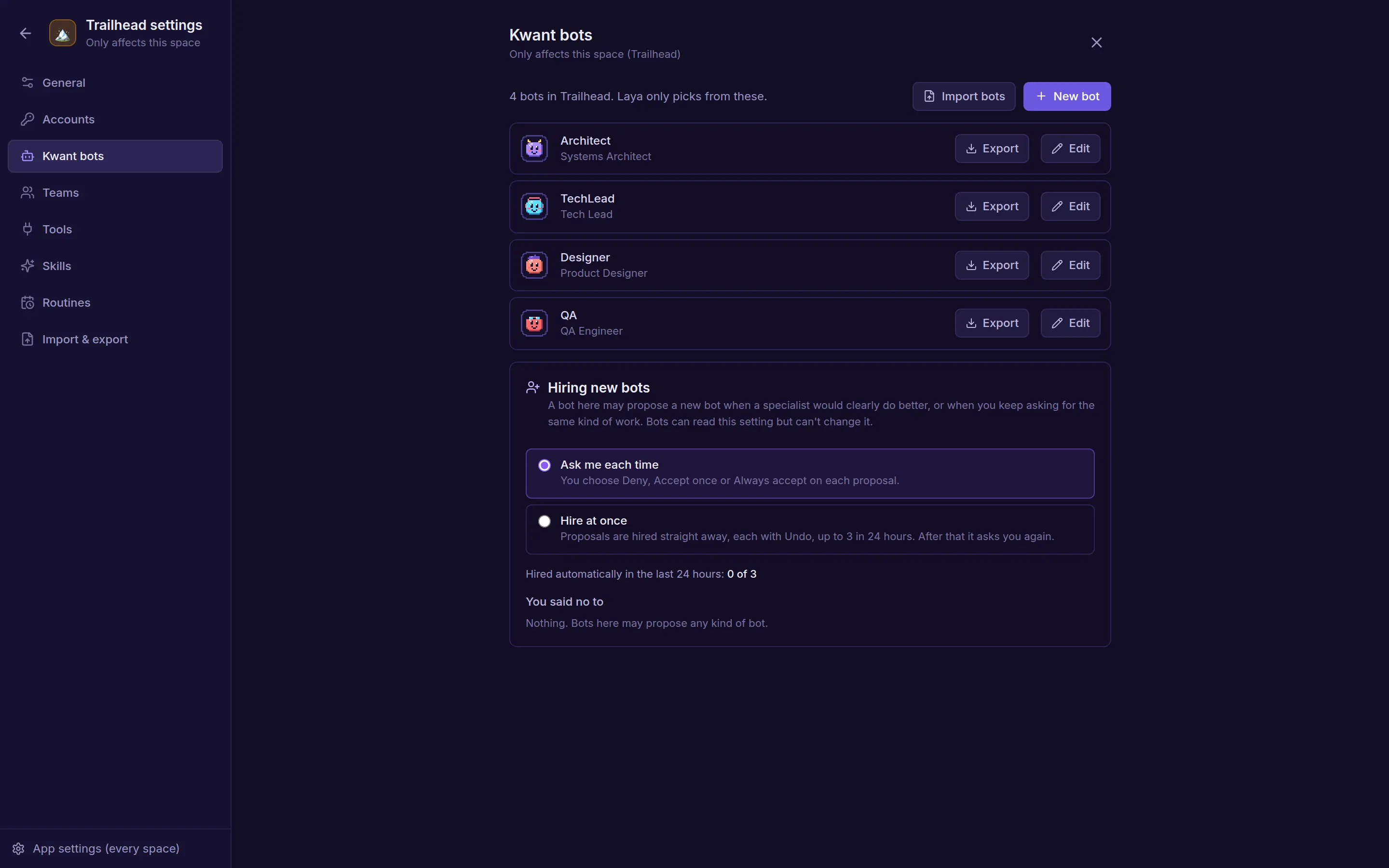
- A bot can make one proposal per turn, and kwant remembers what you denied.
- Each space sets its rule: Ask me each time, or Hire at once with at most 3 automatic hires per 24 hours.
While you were away
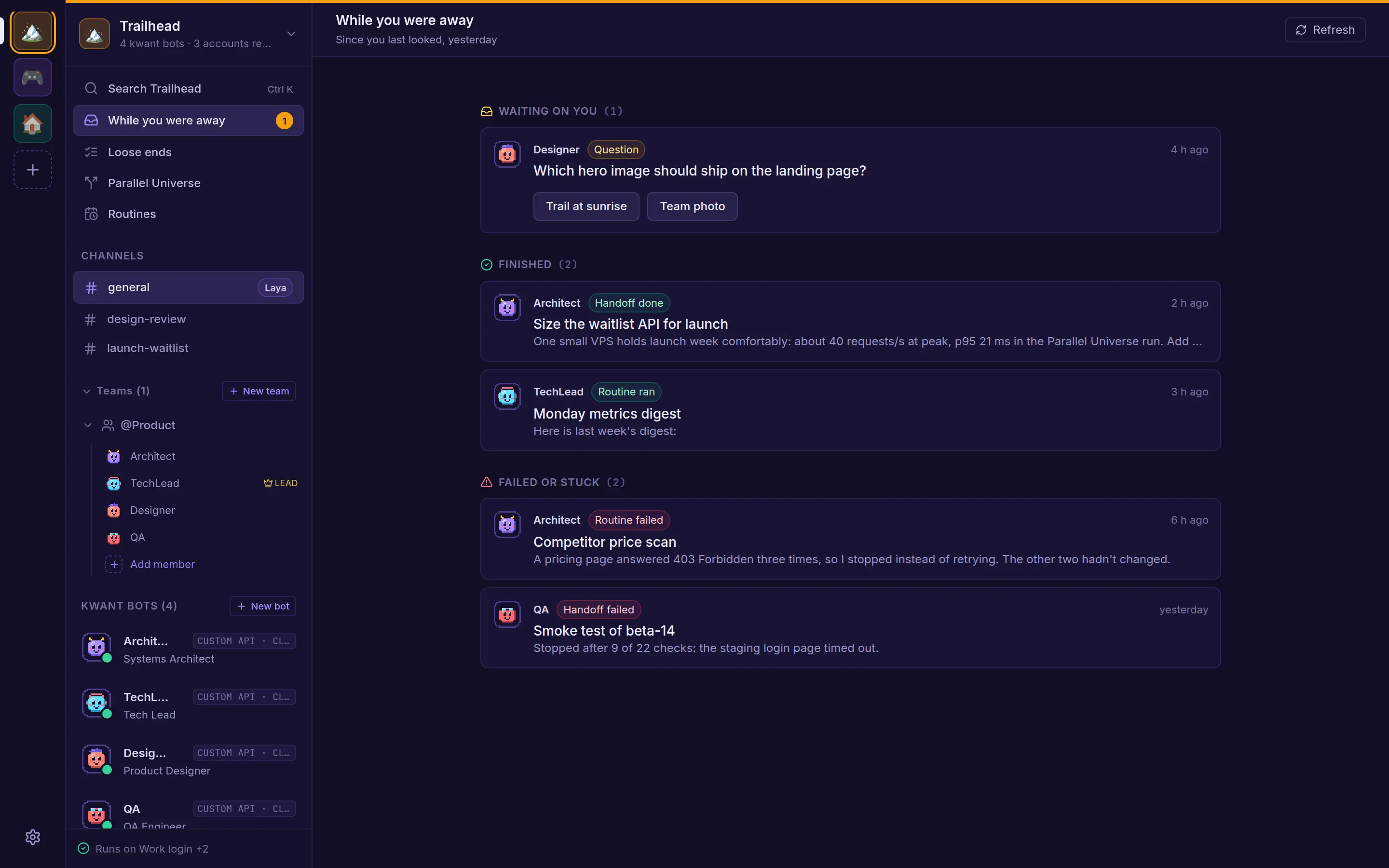
Open While you were away from the sidebar (the badge counts what's new) or the inbox tab on a phone. It lists what changed since you last marked it seen, or the last 7 days the first time.
- Waiting on you: questions and approvals, which you can answer right there.
- Finished: handoffs and routine runs that are done.
- Failed or stuck: failed runs, and handoffs with no reply after 30 minutes.
For a ping when something needs you, turn on browser notifications or add an HTTPS webhook such as ntfy in settings. Webhook messages carry only a title and one line.