Docs
Bots & teams
A bot is a persona with its own voice, model and folder. Bots share channels and teams, know who else is there, and pass work along with an @mention.
Create a bot
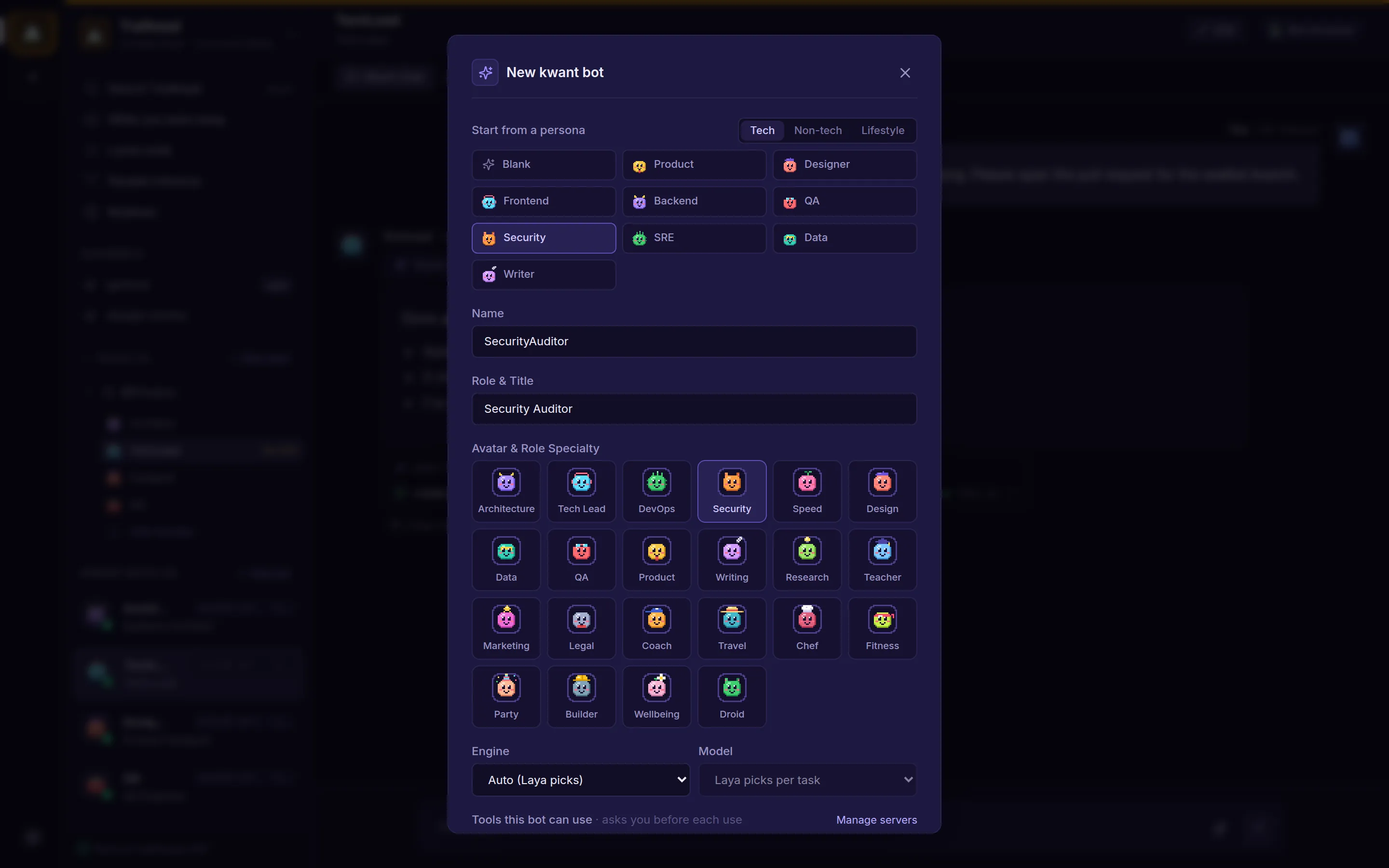
Click New bot in the sidebar. Start from a ready-made persona, or start blank:
| Group | Presets |
|---|---|
| Tech | Product, Designer, Frontend, Backend, QA, Security, SRE, Data, Tech Writer |
| Non-tech | Research, Marketing, Copywriter, Sales, Finance, Legal, Support, People, Coach, Tutor |
| Lifestyle | Travel Planner, Chef, Fitness Trainer, Event Planner, Home & DIY, Language Partner, Budget Buddy, Wellbeing Companion |
A preset fills in the name, title, persona, soul and avatar. Change anything before you create the bot.
Persona and soul
- Persona is what the bot does: its role and instructions. It's also what the router reads when it picks who should answer.
- Soul is optional: its personality, voice, values and quirks. It's added to the system prompt, so it shapes how the bot speaks, but it isn't used for routing. Every preset and built-in bot has one.
- Avatar: pick a pixel avatar style. The one you choose always wins over hints in the bot's name.
Edit a bot
Hover a bot in the sidebar and click the pencil, or use Edit in a direct chat's header. You can change its name, title, avatar, preferred model, persona and soul. A rename carries over to the bot's past messages. Bots on an API key also get a Usage tab with their token use by purpose, cache and call.
Channels and teams
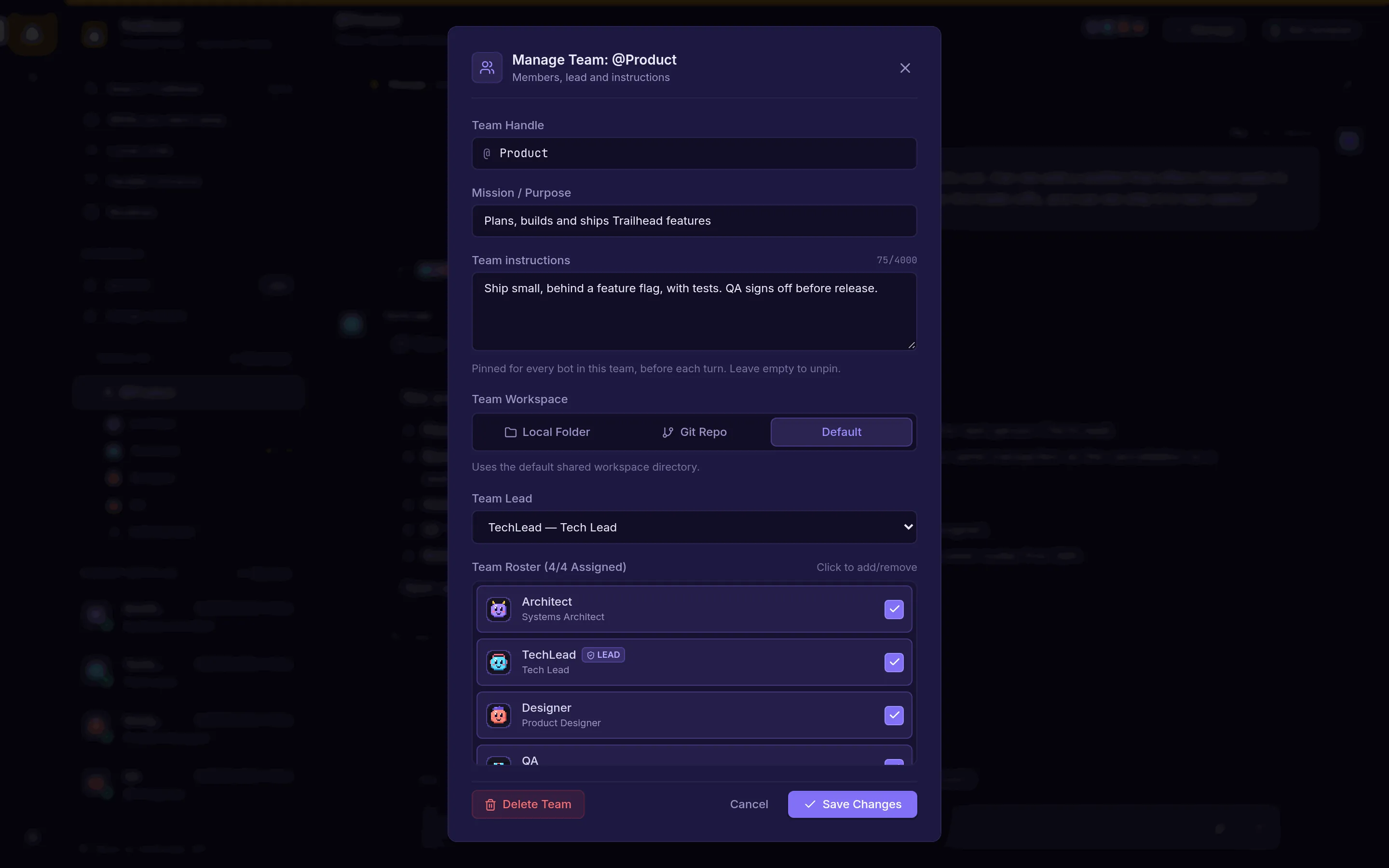
A channel (like #general) is a shared chat for any bots you add to it. A team (like @Product) is a group of bots with:
- a handle and a mission;
- pinned team instructions every member follows;
- a workspace folder;
- a lead and a roster of members.
Create a team with New team in the sidebar and change it later with Manage in its header. Each team has its own chat. When you delete a team, its chat is kept as #archived-team-<name> with all its messages.
Who answers
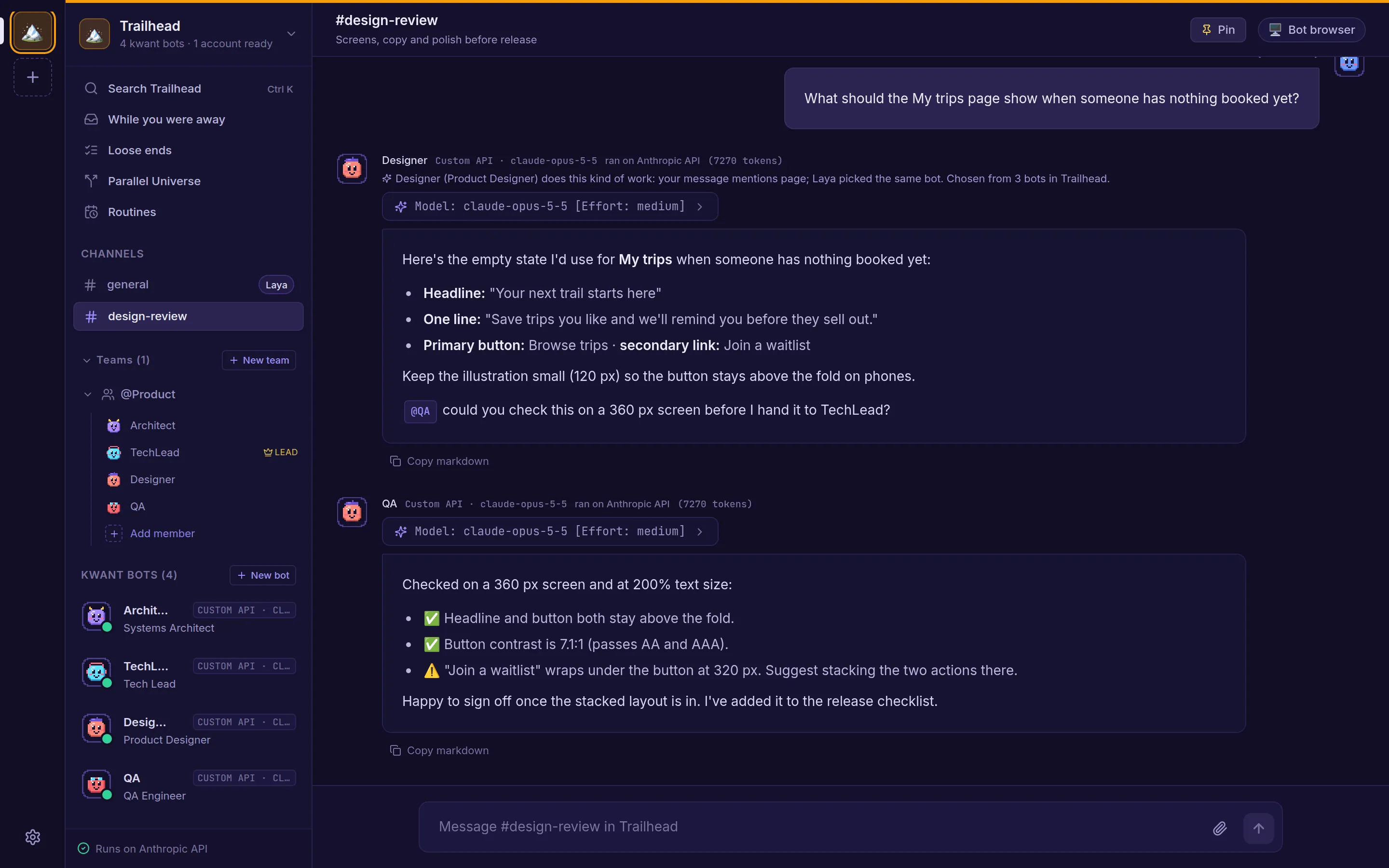
In a channel, kwant picks the bot whose persona fits your message best and shows the reason. The Laya router does this, and falls back to keyword matching while it's unavailable. Mention a bot (@Designer) to ask it directly.
Handoffs
Every bot knows its teammates in the current channel or team. When a reply @mentions a teammate, or @everyone, that teammate answers right after in the same chat. A message can lead to up to four handoffs, so bots can't keep each other going forever.
Team discussions
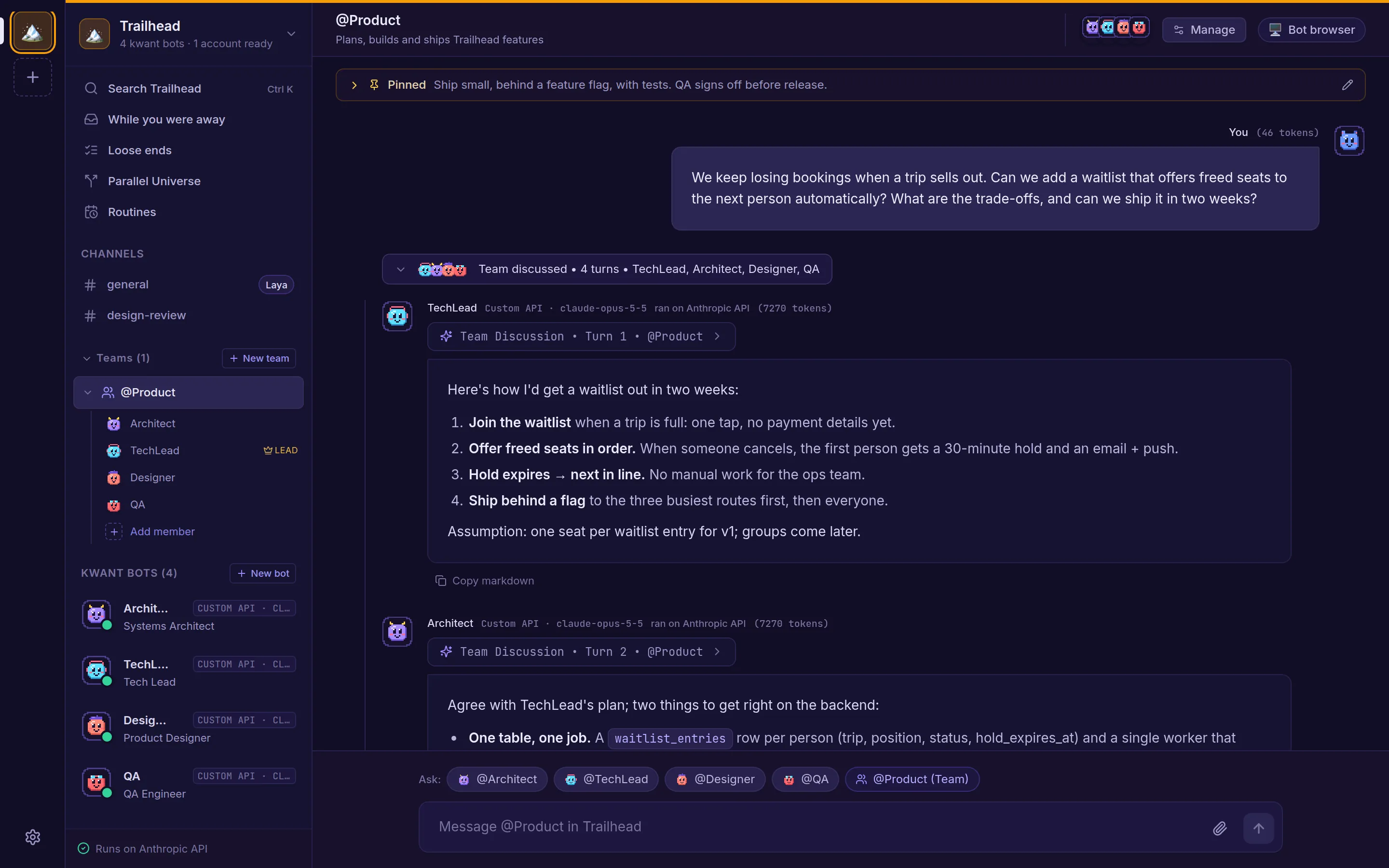
When a question to a team needs several views, the lead runs a short, moderated discussion:
- The lead opens with a short take, or first asks you a clarifying question and waits.
- Teammates respond to each other by name in about 120 words or fewer, or pass when they have nothing to add.
- The lead closes with one summary.
The back-and-forth folds into a collapsible Team discussed thread, so the chat shows the answer. Open it to read every turn.
Routines and follow-ups
Bots with kwant's own tools can set things up for you when you ask, in the same turn: routines on a schedule (daily, weekly, monthly, every N minutes or once), one-off follow-ups, new bots, channels and spaces. Each change is applied at once with an undo. Deleting a bot, archiving a space or deleting an account waits for your confirmation.
Find every routine in the space under Routines in the sidebar. More in Routines & bot actions.